
Run Nutanix Collector on vCenter: A Step-by-Step Guide

Updated: Nov 30, 2024
In this blog post, I will guide you through the process of using Nutanix Collector to gather data from vCenter, which can be used by Nutanix and Partner SE's to help size out the proper Nutanix solution based on a current VMware environment.

About Collector
Nutanix offers a free tool known as Nutanix Collector. This tool is essential for gathering detailed information about virtual environments, including those managed by VMware vCenter.
"Nutanix Collector operates in a non-invasive manner using read-only permissions through APIs and PowerShell scripts. The data amassed by the Nutanix Collector can subsequently be exported to Nutanix Sizer for precise planning and recommendations."
Unlike RVTools which provides a snapshot in time, Nutanix Collector will get 7 days worth of historical data from vCenter. This will ensure that you collect a good baseline of all the peaks and valleys of your workloads.
Getting Started with Collector
Step 1: Download and Install Nutanix Collector
First, you need to download the Nutanix Collector tool from the Nutanix support portal here.

Once downloaded, install the tool on a PC that has network access to your vCenter server.

Note:
Mac users may get the message below depending on your security settings. Hold the "Control" key and select "Open" to bypass this error.


Step 2: Configure Nutanix Collector
After installation, launch Nutanix Collector. You will be prompted for a few inputs:
1. Select the Data Source: Choose “vCenter” in the "Run on" drop down

2. Enter vCenter Details: Provide the IP address of your vCenter server, along with the necessary credentials (username and password).
3. Click "Connect"

Step 3: Start Data Collection
Click "Collect" to initiate the data collection process. Nutanix Collector will start gathering data from your vCenter environment. This process may take a few minutes depending on the size of your environment.

Step 4: Review and Upload the Collected Data
After the data collection is complete, Nutanix Collector will generate a comprehensive report. This report includes detailed performance information about your vCenter workloads.
Feel free to review the "Cluster Summary, Host Summary, and VM Summary tabs below.


2. Click "Show Collection File (.ZIP)"

The file location will show in your finder window or windows explorer.
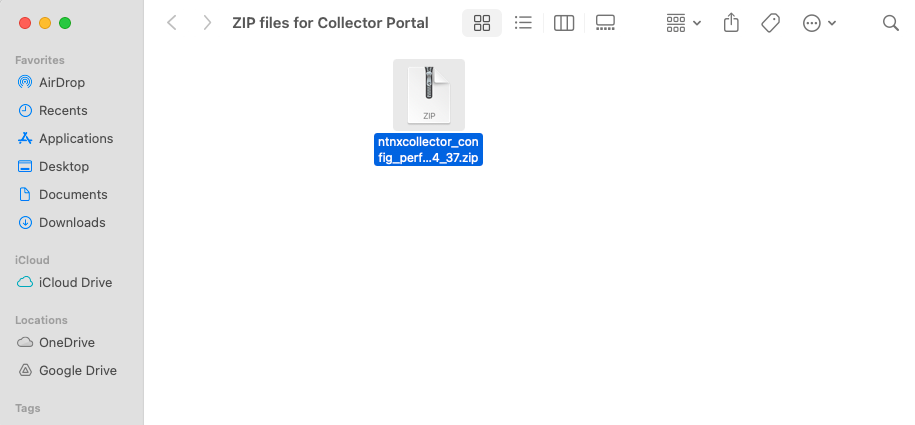
3. Now we need to upload the collector file to the Nutanix Collector portal by clicking "Go to Portal".

4. First we will want to create a new project by clicking "Create".
Note:
You may have to sign in or create a Collector Account.

5. Give the Project a Name.
6. Click "Upload" and select the zip file that you downloaded previously.


7. Click "Create" to create the new project

Note:
If the project needs to be shared with a Partner or Nutanix SE, click the "Share" button, enter the email address of the Recipient, and click "Share".

Step 5: Export to Sizer (This step is for Nutanix/Partner SE's only.)
1. Finally you can Click "Export" then "Export to Sizer"

2. Enter a Sizer Scenario Name and Click "Next".

3. Select your desired Sizing Preferences. It is a good idea to discuss these with your customer. I won't dive into each of these options in this blog.
4. Click "Done".

Step 6: Review and Update Sizer Recommendation
You should see a message that "The project was exported to Sizer."

When you click on the link you will be taken to Sizer which will automatically build a rough draft Nutanix Solution for you to review and edit as needed.
Sizer will default to the most cost effective solution, so you may need to make some updates depending on your customer requirements.

Building a Nutanix solution might seem like a daunting task at first, but Nutanix provides the tools to make it so easy that anyone can do it!
Summary
Nutanix Collector is an invaluable tool for collecting data about your virtual environment, especially with VMware environments. By following the steps outlined in this blog post, you can effectively use Nutanix Collector to gather comprehensive data from your vCenter environment, ensuring Nutanix and Partner SE's can size a new Nutanix environment properly.
Helpful Links:


Comments